







2. Plugin - Instalación y Despliegue
Despliega el plugin UPS WooCommerce en tu tienda. Cubre la carga, activación, credenciales de API y verificación de conexión inicial.
Guía paso a paso
2. Instala el plugin de envío UPS.
In the case that the plugin already exist in the system.Download the file from https://www.ups.com/pl/en/services/technology-integration/ecommerce-plugins.page at folder “Source_Woocommerce”. Login to

In the case that the plugin already exist in the system.Download the file from https://www.ups.com/p
In the case that the plugin already exist in the system.Download the file from https://www.ups.com/pl/en/services/technology-integration/ecommerce-plugins.page at folder “Source_Woocommerce”. Login to the system, go to the plugin page, and click on “Add New” => ”Upload Plugin” => ”Install”.

After installation is completed, the following screen will be shown.
After installation is completed, the following screen will be shown.

Click on “Activate Plugin”. Go to the plugin page by clicking on the button “Plugins” on left menu.
Click on “Activate Plugin”. Go to the plugin page by clicking on the button “Plugins” on left menu.
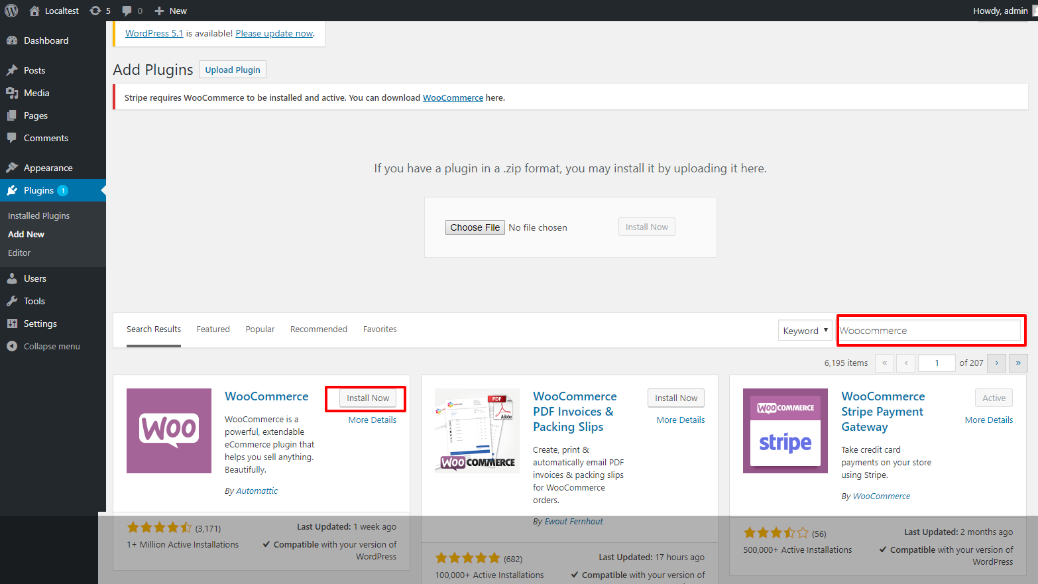
In the case there are more than one UPS Shipping plugin in the system.Installing an existing version
In the case there are more than one UPS Shipping plugin in the system.Installing an existing version
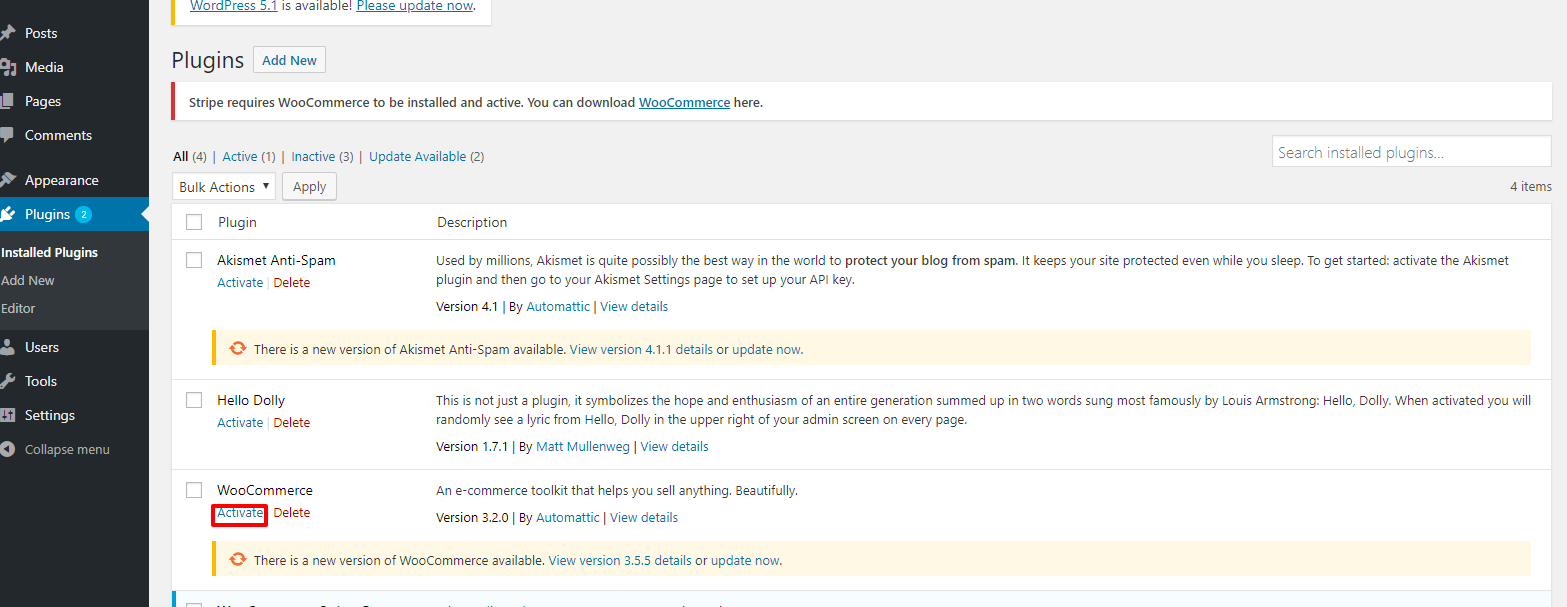
Installing a version that does not exist in the system. Log in to the system, go to the plugin page
Installing a version that does not exist in the system. Log in to the system, go to the plugin page, click on button "Add New" => click "Upload Plugin", select zip file for upload, click "Install". After installation complete successfully, the below screen is shown.

Step 1: Delete all UPS Shipping plugins on the system.
Step 1: Delete all UPS Shipping plugins on the system.

Step 2: Deactivate the current version of UPS Shipping. You can click "deactivated", then click on "
Step 2: Deactivate the current version of UPS Shipping. You can click "deactivated", then click on "Remove".
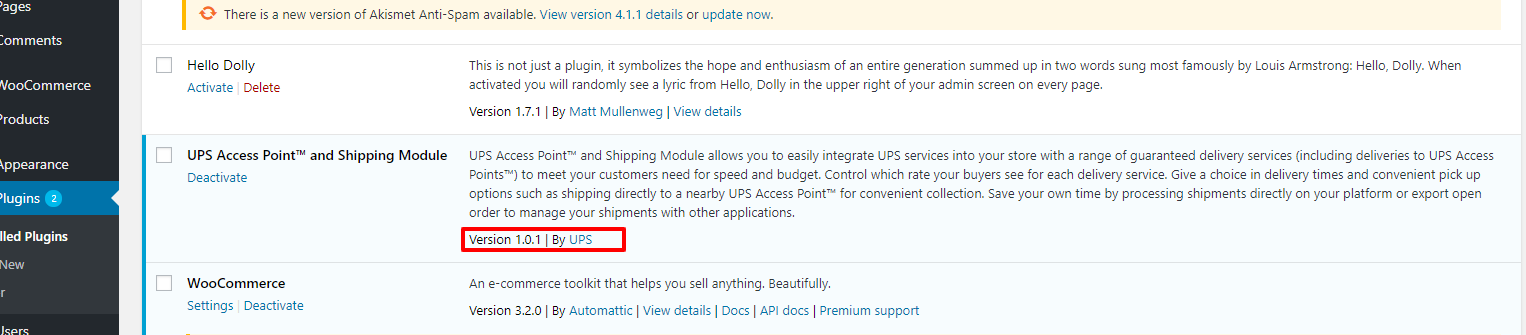
Install directly from the plugin page. Log in to the system, click on button "Plugins" in the left m
Install directly from the plugin page. Log in to the system, click on button "Plugins" in the left menu, click on button "Add New", and enter keyword "UPS Shipping and UPS Access Point™: Official Plugin" in the textbox search with keyword on the right of the screen. By this way, the plugin is always of the latest version.

After installation is successful, go to the plugin page. You will see the UPS Shipping and UPS Acces
After installation is successful, go to the plugin page. You will see the UPS Shipping and UPS Access Point™: Official Plugin, click on the button "activated".

Figure 12 – Plugin version by
Figure 12 – Plugin version by

Click on “WooCommerce” -> ”Setting” -> ”Shipping” -> “Add shipping zone”.
Click on “WooCommerce” -> ”Setting” -> ”Shipping” -> “Add shipping zone”.

Add shipping method [UPS shipping] to the Shipping zone.
Add shipping method [UPS shipping] to the Shipping zone.
Click on "Add shipping method", the system will show the popup below. Select "UPS Shipping". And cli
Click on "Add shipping method", the system will show the popup below. Select "UPS Shipping". And click on “Save change”.

Upgrade new version directly from the plugin page. Log in to the system, click on button "Plugins" i
Upgrade new version directly from the plugin page. Log in to the system, click on button "Plugins" in the left menu. If the user see the updated notice, you can choose update new version.

The user can install the package of new version, de-activate the older version and then activate the
The user can install the package of new version, de-activate the older version and then activate the new version.

f. Configuration of "Cash on Delivery" and "Shop Currency"
f. Configuration of "Cash on Delivery" and "Shop Currency"

Configuration in WooCoommerce: Click "WooCommerce" > "Shipping" > "Shipping options" > "Enable the s
Configuration in WooCoommerce: Click "WooCommerce" > "Shipping" > "Shipping options" > "Enable the shipping calculator on the cart page". The detail in the image below:
