







2. Tariffe Live UPS per WooCommerce
Configura le Tariffe Live UPS per visualizzare i costi di spedizione in tempo reale al checkout di WooCommerce. Copre le impostazioni delle tariffe, i servizi e i test.
Guida passo dopo passo
Accedi al Dashboard UPS e al Backend di WooCommerce
Ensure you are logged into ups.dashboardlink.com. Open a second tab and log into your WooCommerce backend.
→ https://ups.dashboardlink.com/Install the UPS Live Rates plugin in WooCommerce.
Install the UPS Live Rates plugin in WooCommerce.
→ https://link.ecommerce.help/ups-plugins-woocommerce/live-rates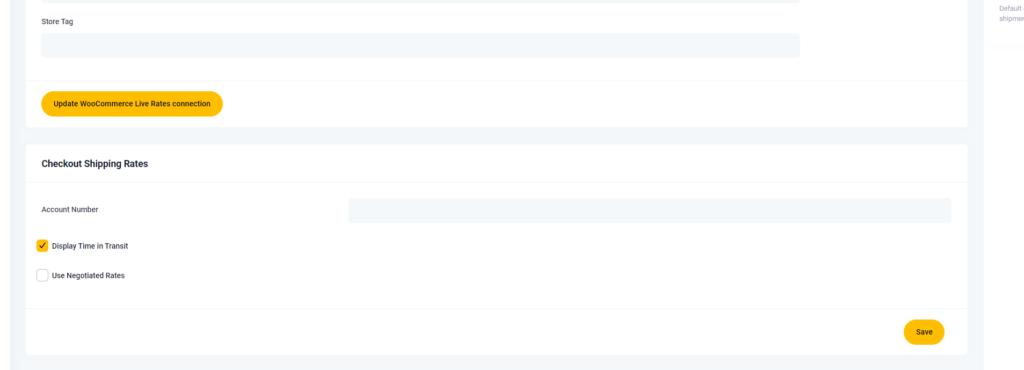
Go to WooCommerce settings.
Go to WooCommerce settings.
Navigate to shipping and select shipping zones.
Navigate to shipping and select shipping zones.
Choose UPS services to display in the checkout for the specific zone.
Choose UPS services to display in the checkout for the specific zone.

Example: Add UPS standard service for the zone of Germany.
Example: Add UPS standard service for the zone of Germany.
Once selected, the UPS services should be activated.
Once selected, the UPS services should be activated.
Proceed to checkout and add a proper address to see UPS standard rates.
Proceed to checkout and add a proper address to see UPS standard rates.
To display additional services, go back to the shipping zone settings.
To display additional services, go back to the shipping zone settings.
Select another service (e.g., UPS Express) and refresh the page to view both rates.
Select another service (e.g., UPS Express) and refresh the page to view both rates.
In the eCommerce shipping dashboard, configure topics for live rates.
In the eCommerce shipping dashboard, configure topics for live rates.

Include time and transit information and use negotiated rates.
Include time and transit information and use negotiated rates.
To display negotiated rates, add the UPS account number in the specified section.
To display negotiated rates, add the UPS account number in the specified section.
Carica e Installa il Plugin Tariffe Live UPS
In the WooCommerce backend, navigate to the plugins section where you can upload a new plugin. Choose the downloaded UPS plugin file. Click on the "Install Now" button. Activate the plugin once it is installed.
→ https://link.ecommerce.help/ups-plugins-woocommerce/live-ratesCollega le Tariffe Live UPS
After activation, find the plugin in your plugin overview. Click on the plugin and locate the UPS live rates option. Click on the UPS live rates button to initiate the connection. Log in to UPS, accept terms and conditions, and click continue.
Configura le Tariffe Live
You will be redirected to your UPS shipping dashboard. Start the configuration of your live rates within the UPS shipping dashboard. Go to WooCommerce settings. Navigate to shipping and select shipping zones. Choose UPS services to display in the checkout for the specific zone. Example: Add UPS standard service for the zone of Germany.

Attiva i Servizi e Testa
Once selected, the UPS services should be activated. Proceed to checkout and add a proper address to see UPS standard rates. To display additional services, go back to the shipping zone settings. Select another service (e.g., UPS Express) and refresh the page to view both rates. In the eCommerce shipping dashboard, configure topics for live rates. Include time and transit information and use negotiated rates.
Tariffe Negoziate
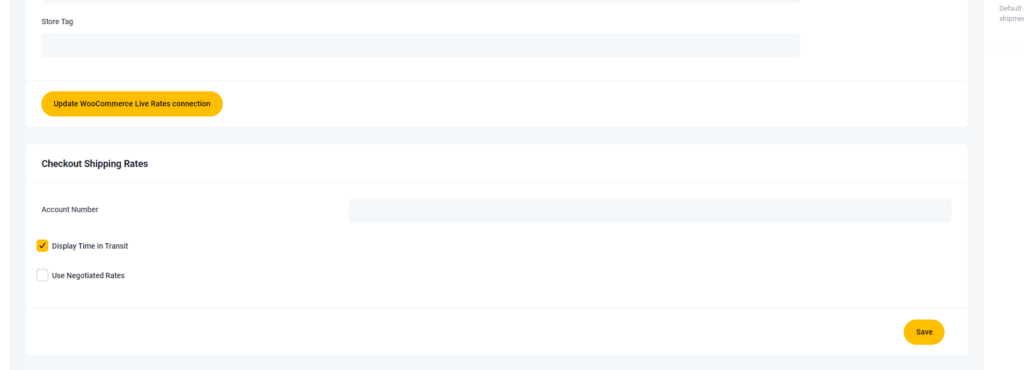
To display negotiated rates, add the UPS account number in the specified section.