6. Définir la Longueur, la Largeur et la Hauteur du Produit
Définir la Longueur, la Largeur et la Hauteur du Produit. Guide étape par étape pour les commerçants en e-commerce.
Guide étape par étape
1. Allez aux attributs du produit
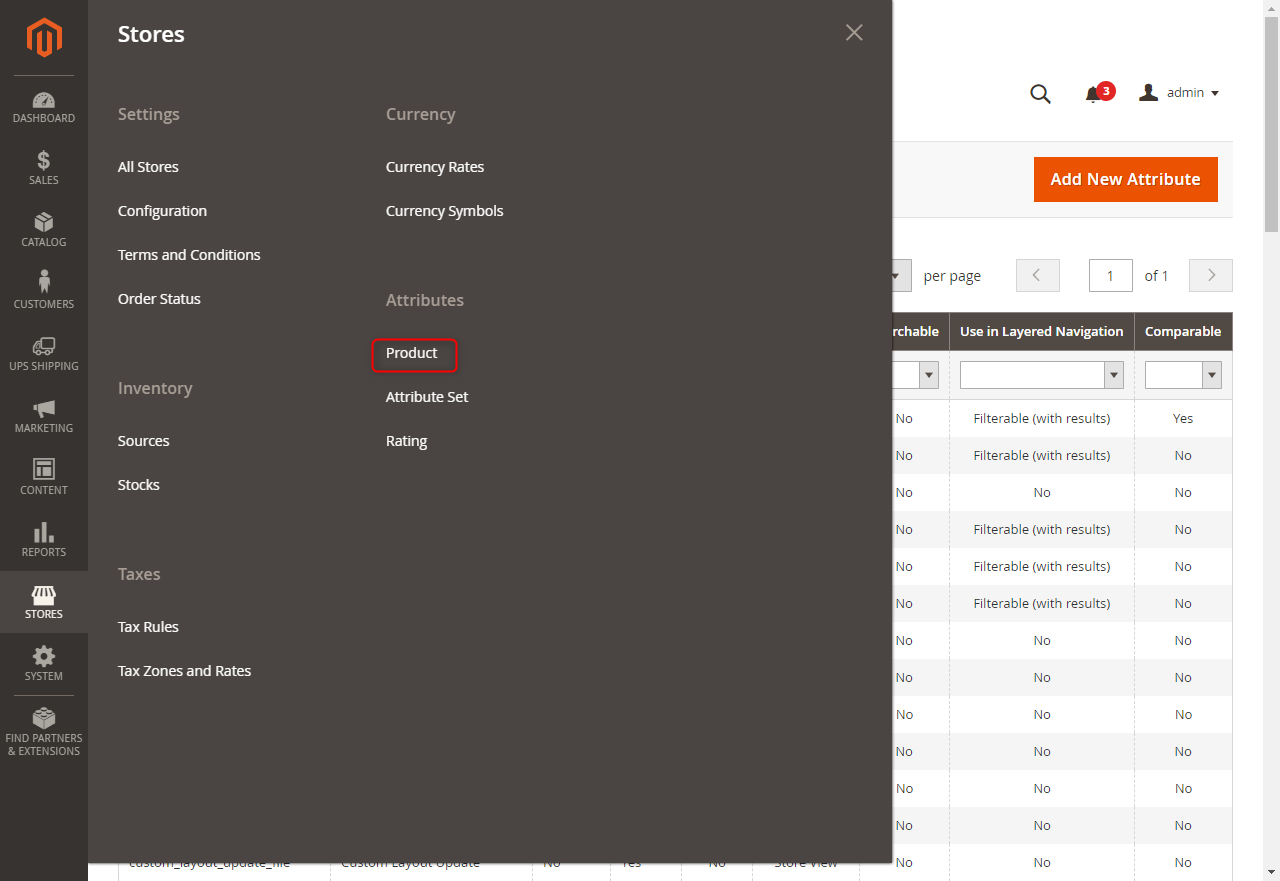
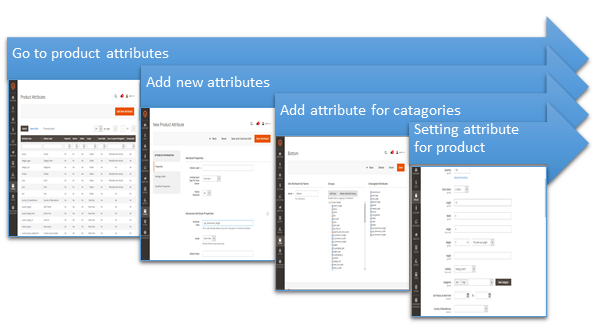
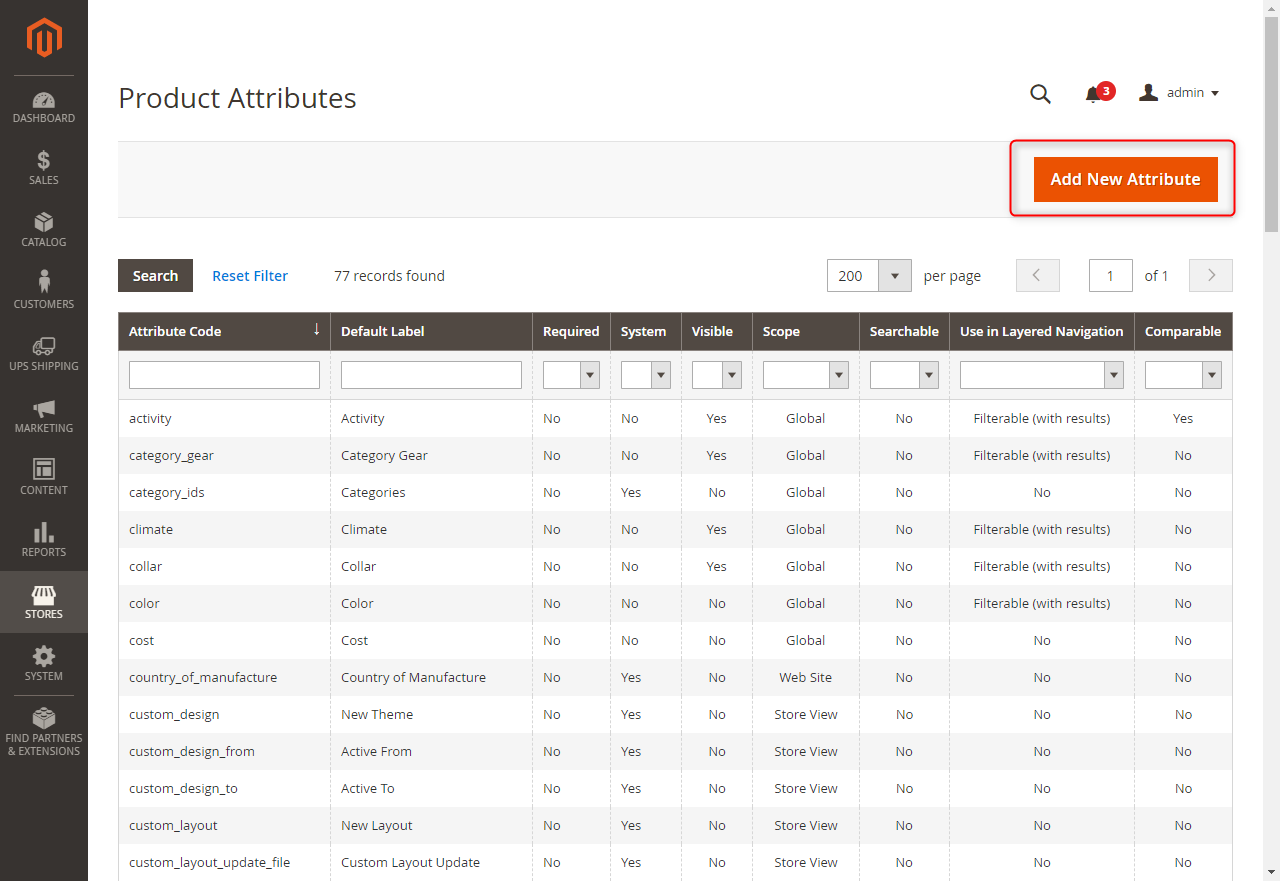
• Login Magento admin page -> Stores -> Attributes -> Product Figure 57 - Go to product attributes
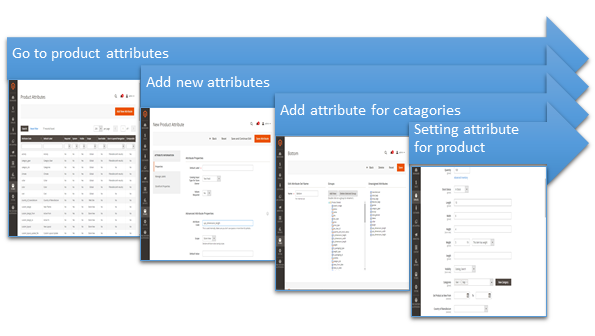
2. Ajouter de nouveaux attributs
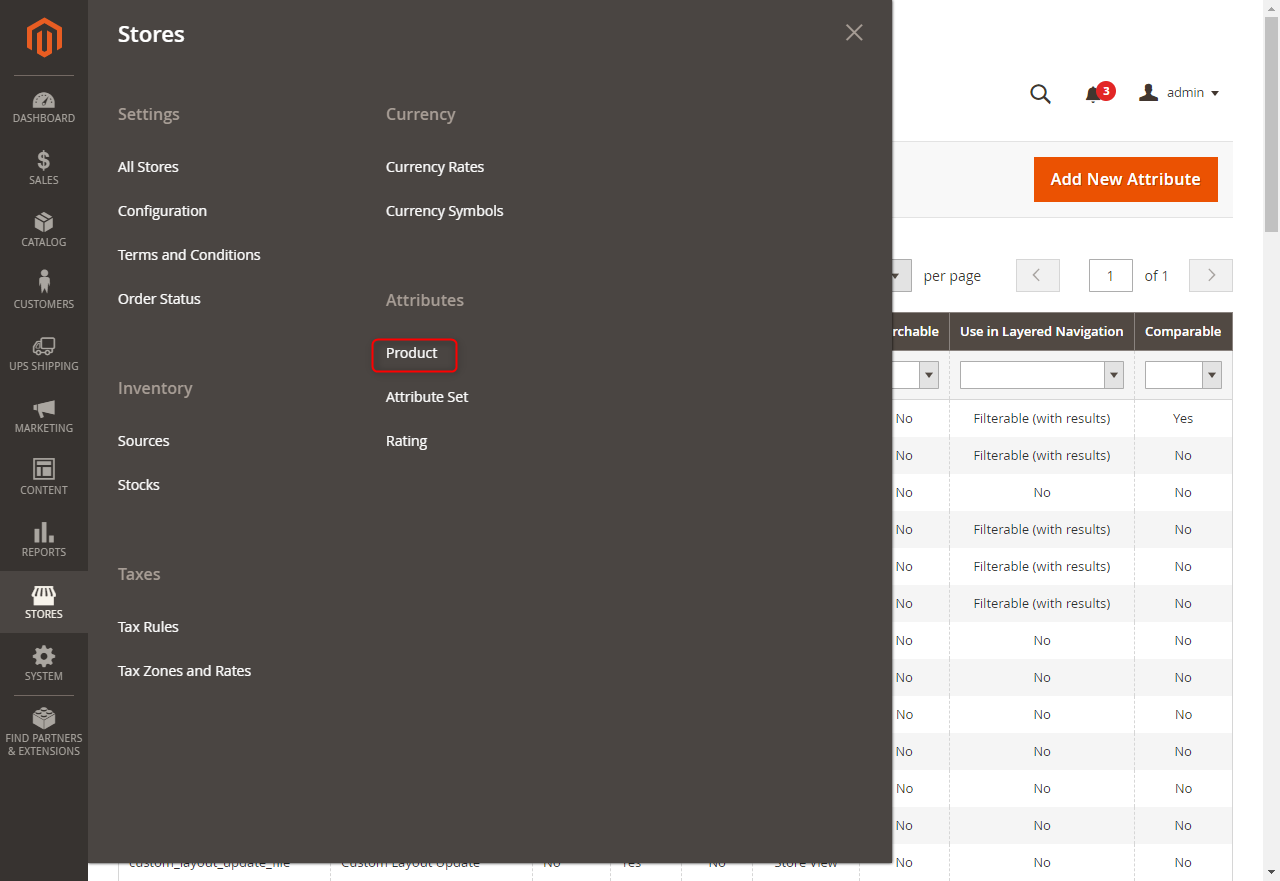
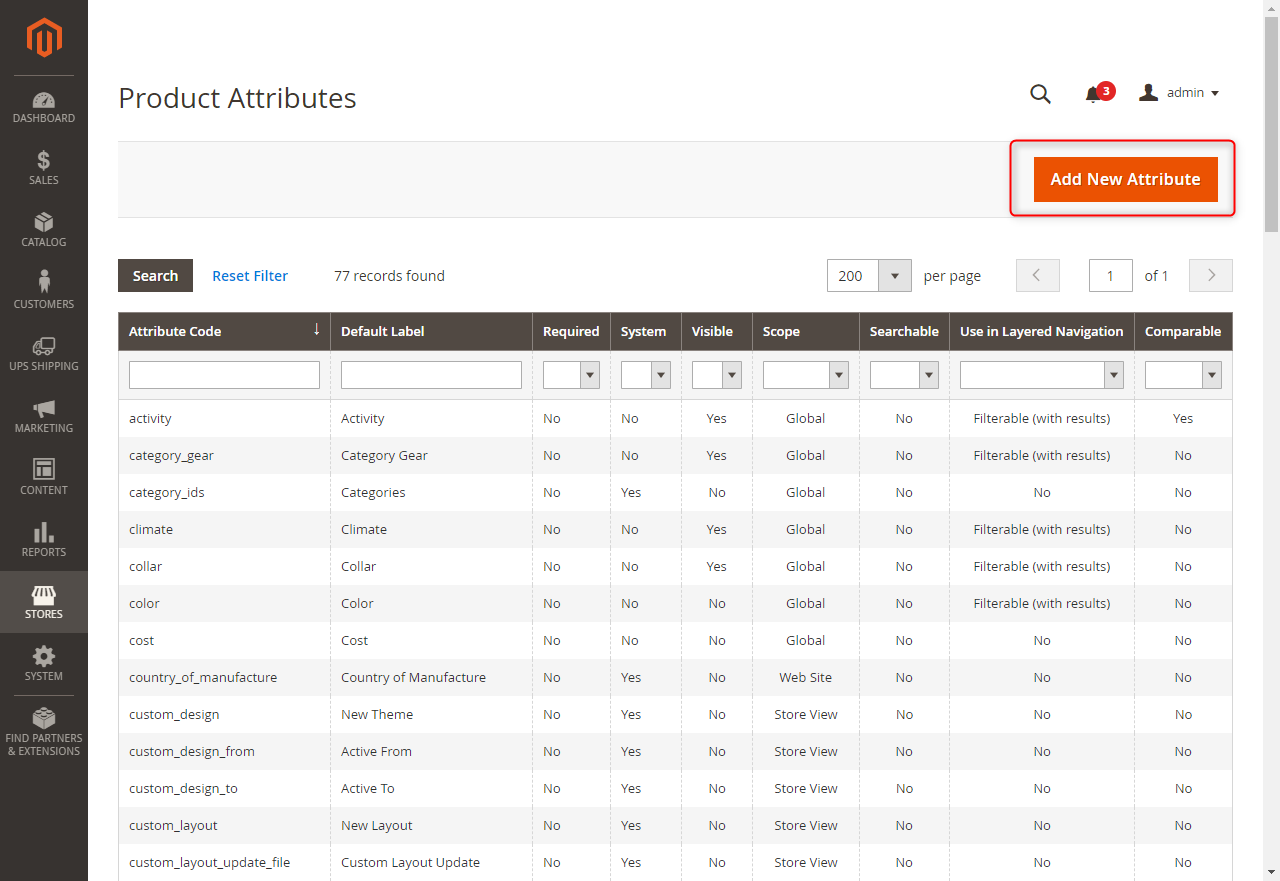
Click Add New Attributes button
Click Add New Attributes button
Click Add New Attributes button
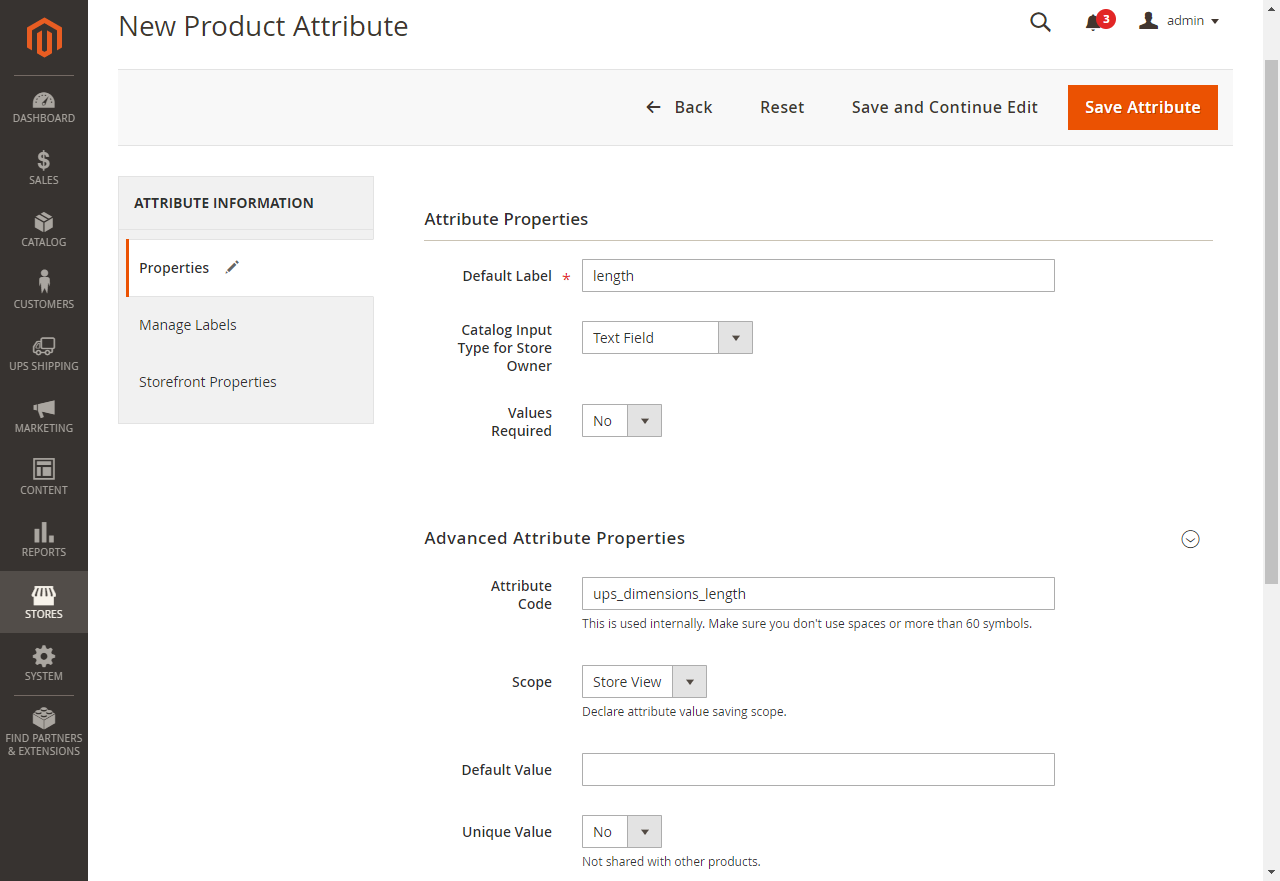
Input valid value for "Default Label" field.
Input valid value for "Default Label" field.
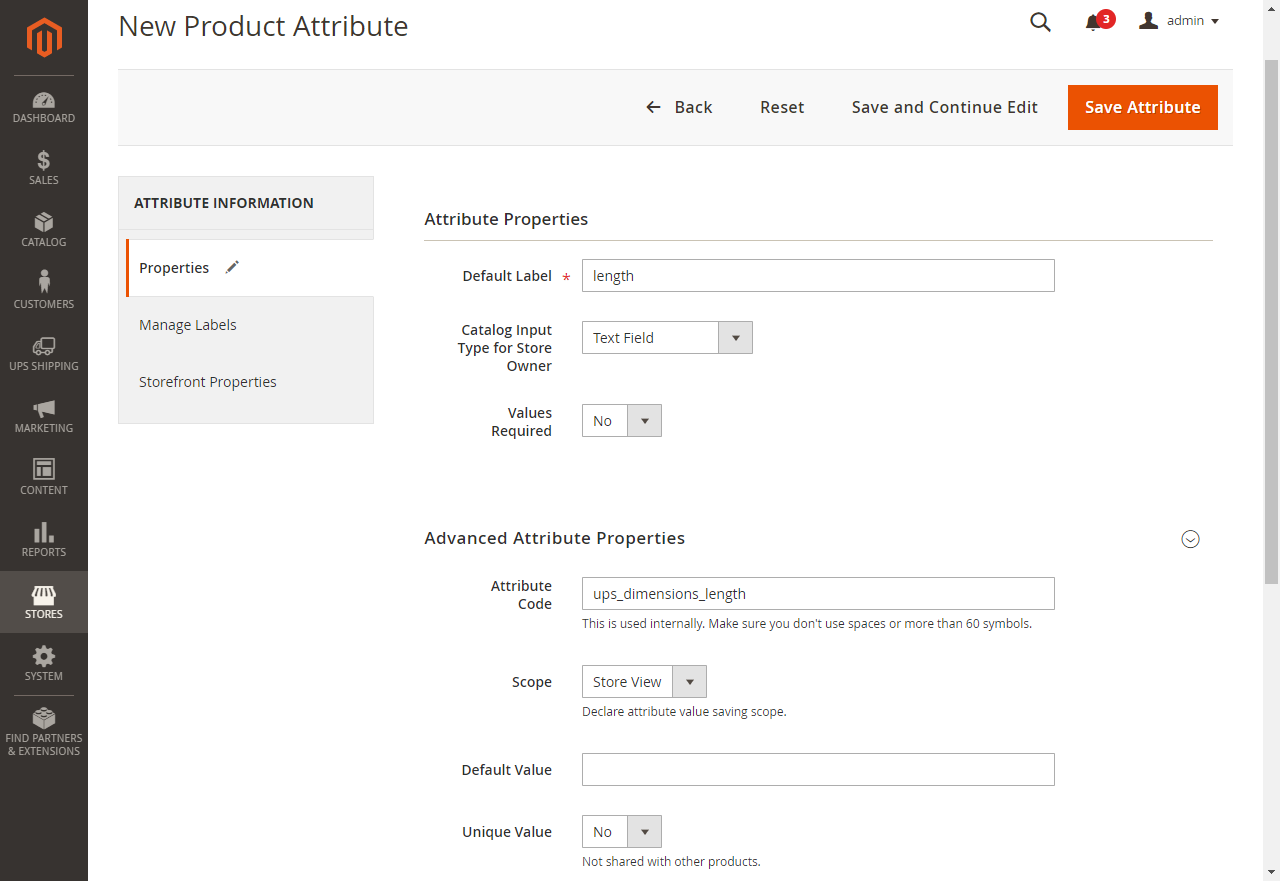
Input "ups_dimensions_length" for "Attribute Code" field
Input "ups_dimensions_length" for "Attribute Code" field
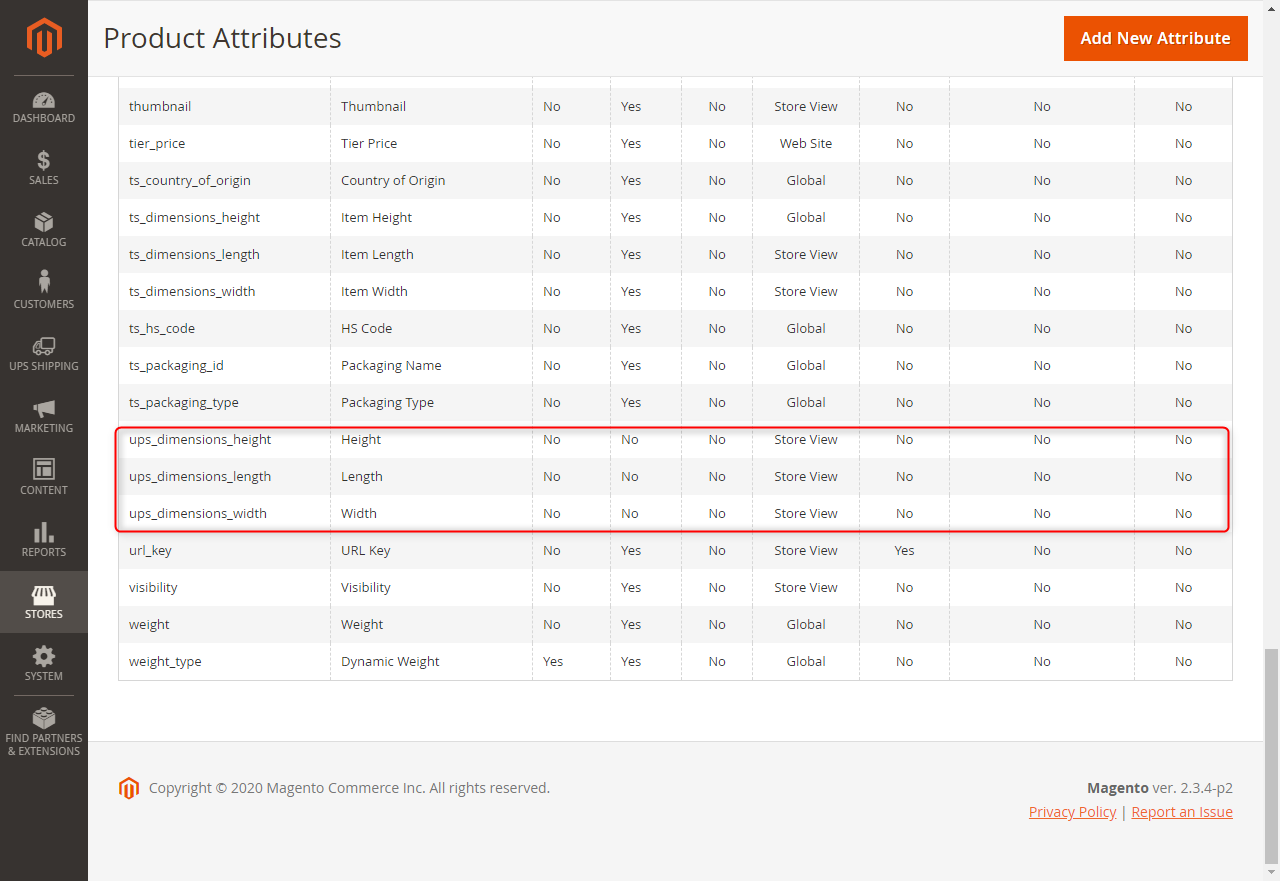
Click "Save Attribute" button
Click "Save Attribute" button
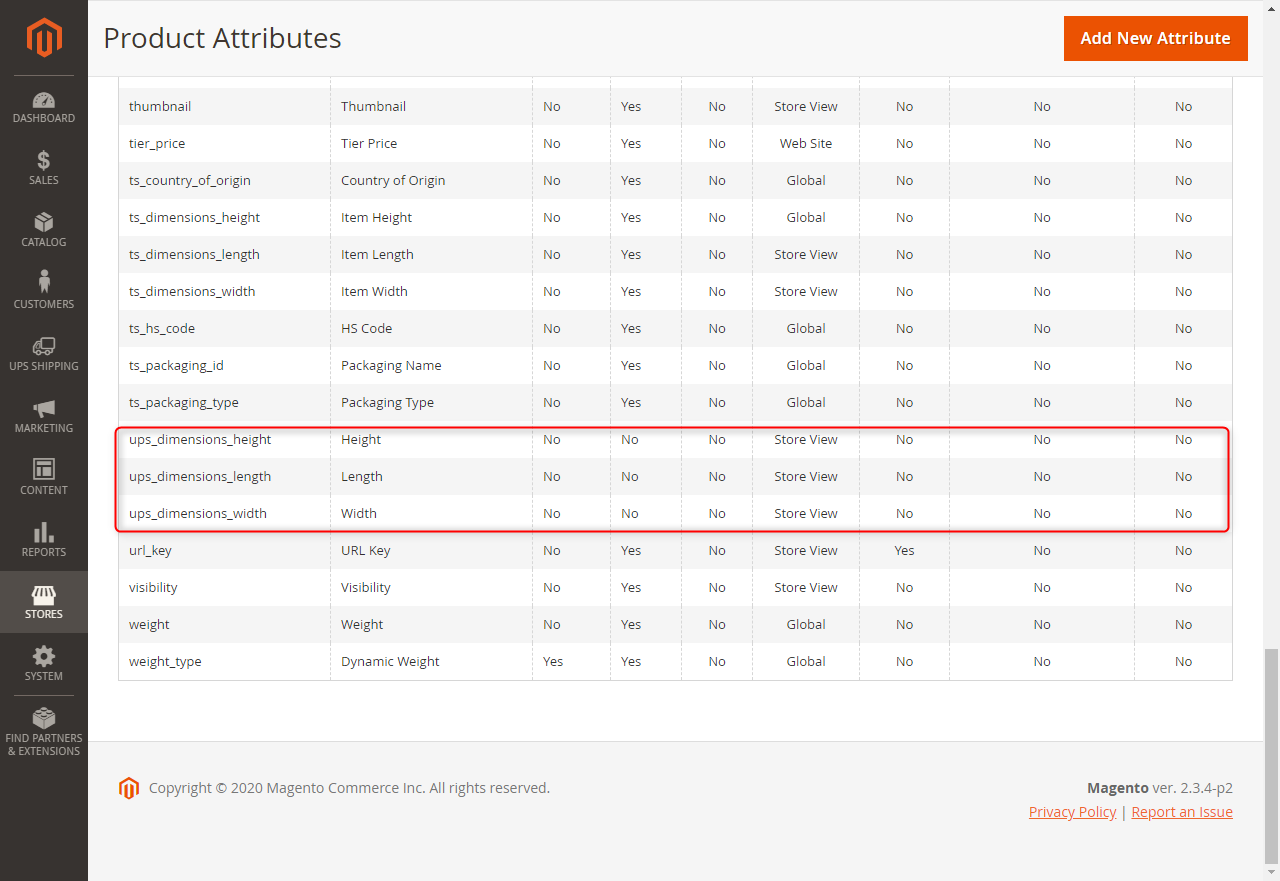
Do same step with ups_dimensions_width and ups_dimensions_height
Do same step with ups_dimensions_width and ups_dimensions_height
3. Ajouter des attributs pour les catégories
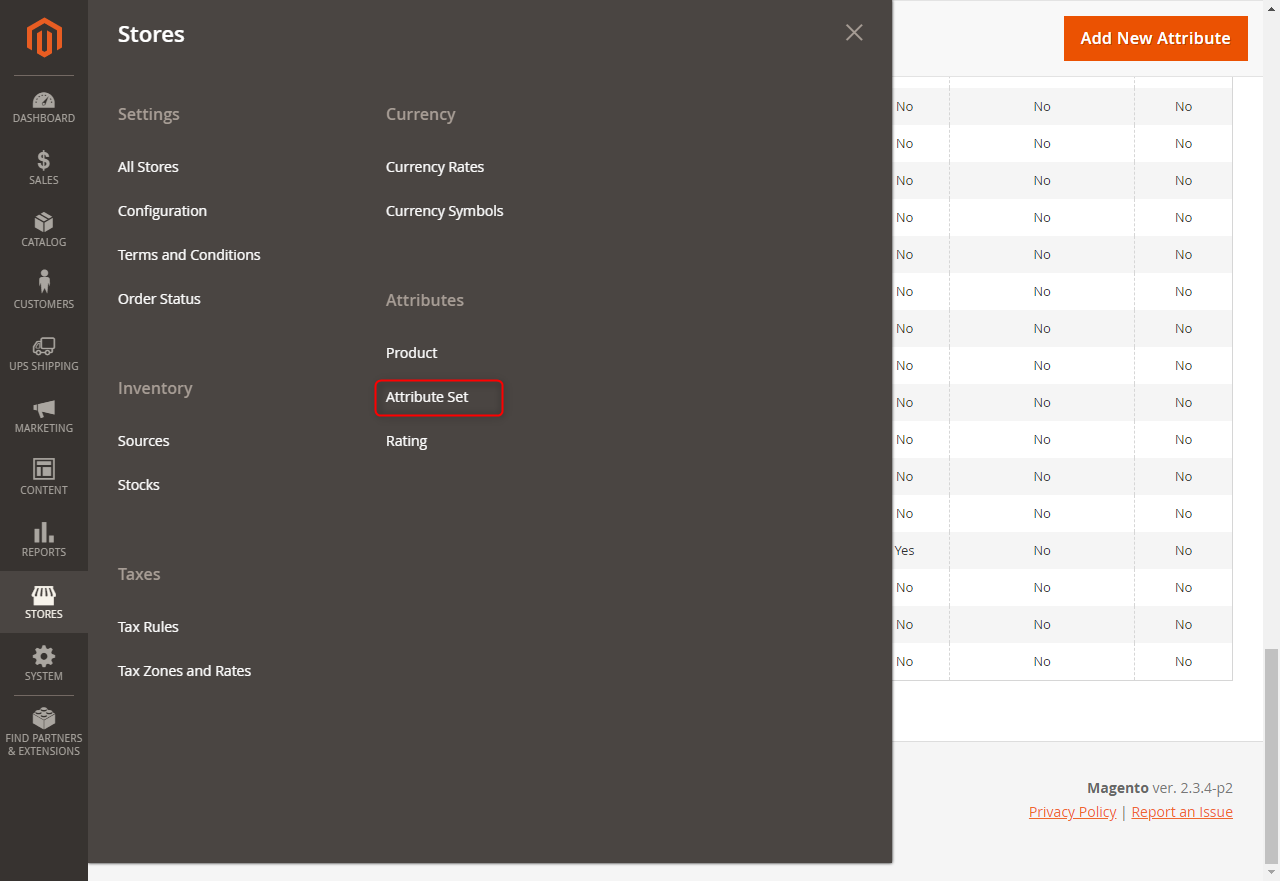
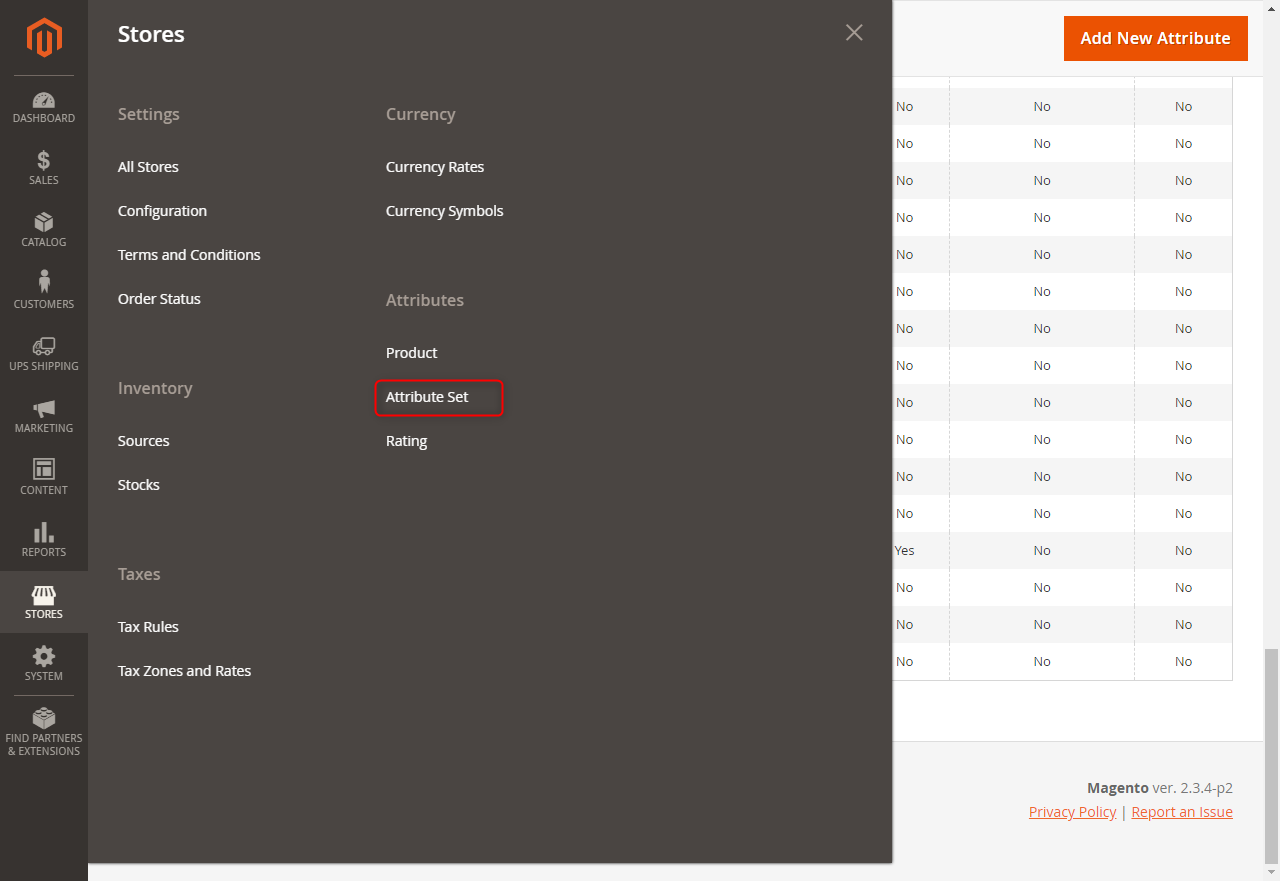
Go to Stores -> Attributes -> Attributes Set
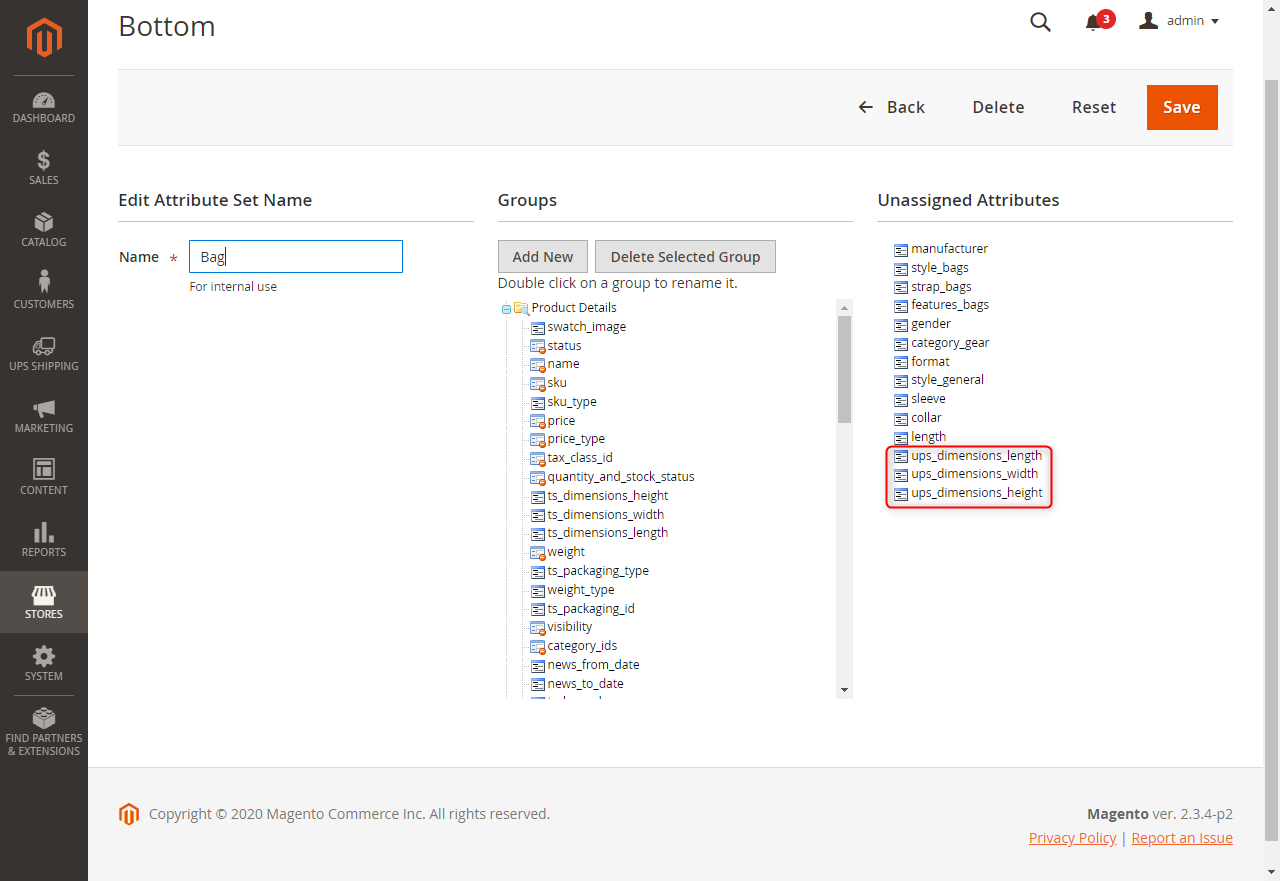
Go to Stores -> Attributes -> Attributes Set
Go to Stores -> Attributes -> Attributes Set
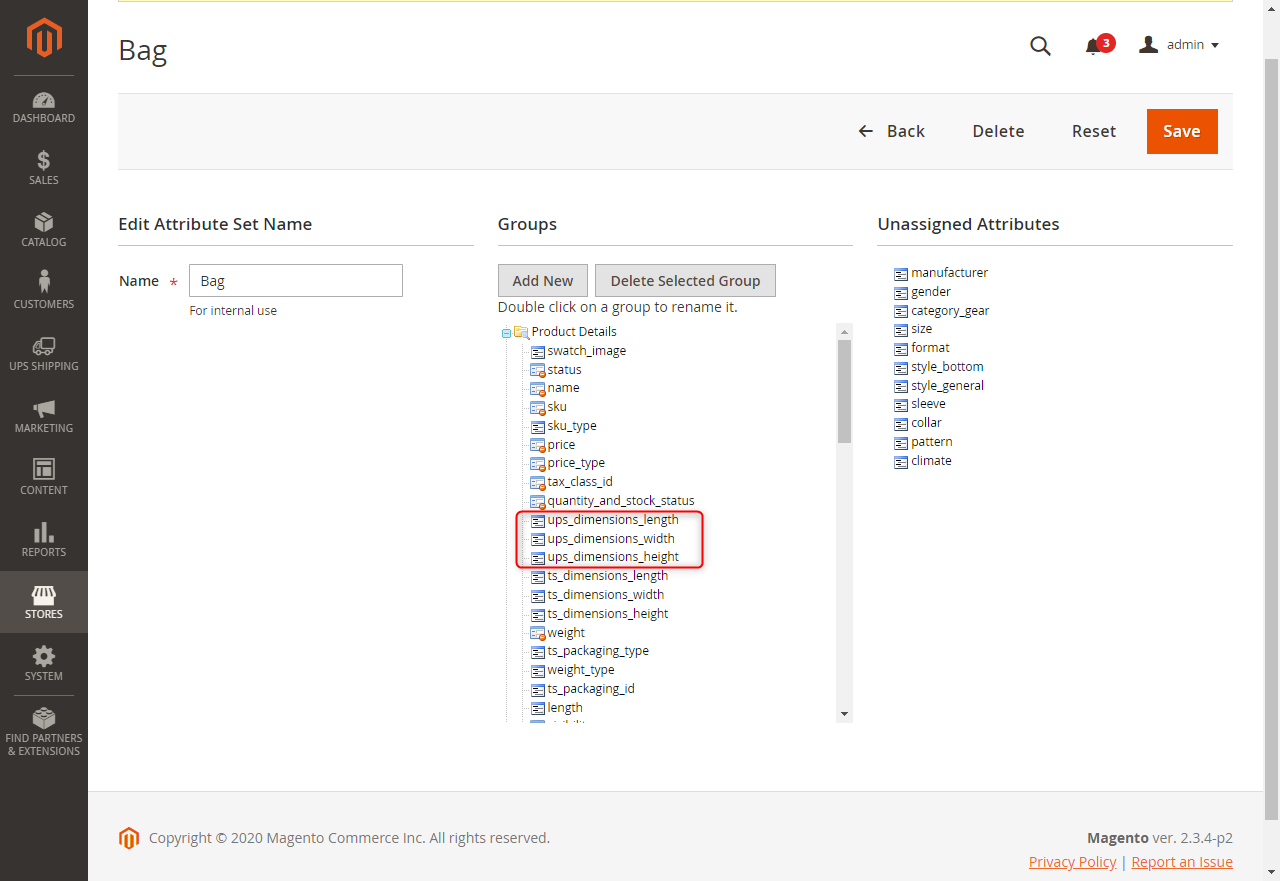
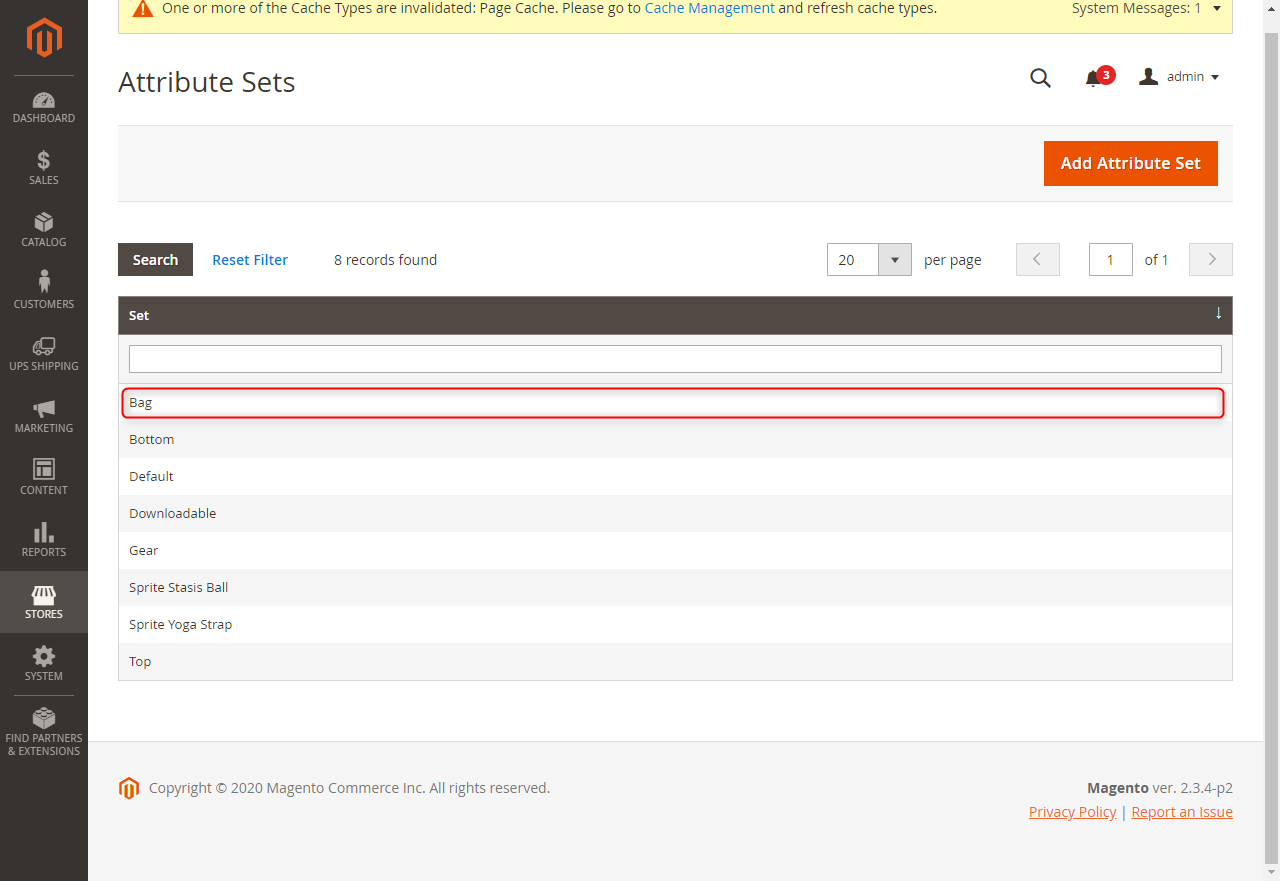
Click first Categories
Click first Categories
Drag 3 attributes ups_dimensions_length, ups_dimensions_width, ups_dimensions_height from "Unassigne
Drag 3 attributes ups_dimensions_length, ups_dimensions_width, ups_dimensions_height from "Unassigned Attributes" to "Groups"
Click “Save” button
Click “Save” button
Same do step with another categories
Same do step with another categories
4. Définir les attributs pour le produit
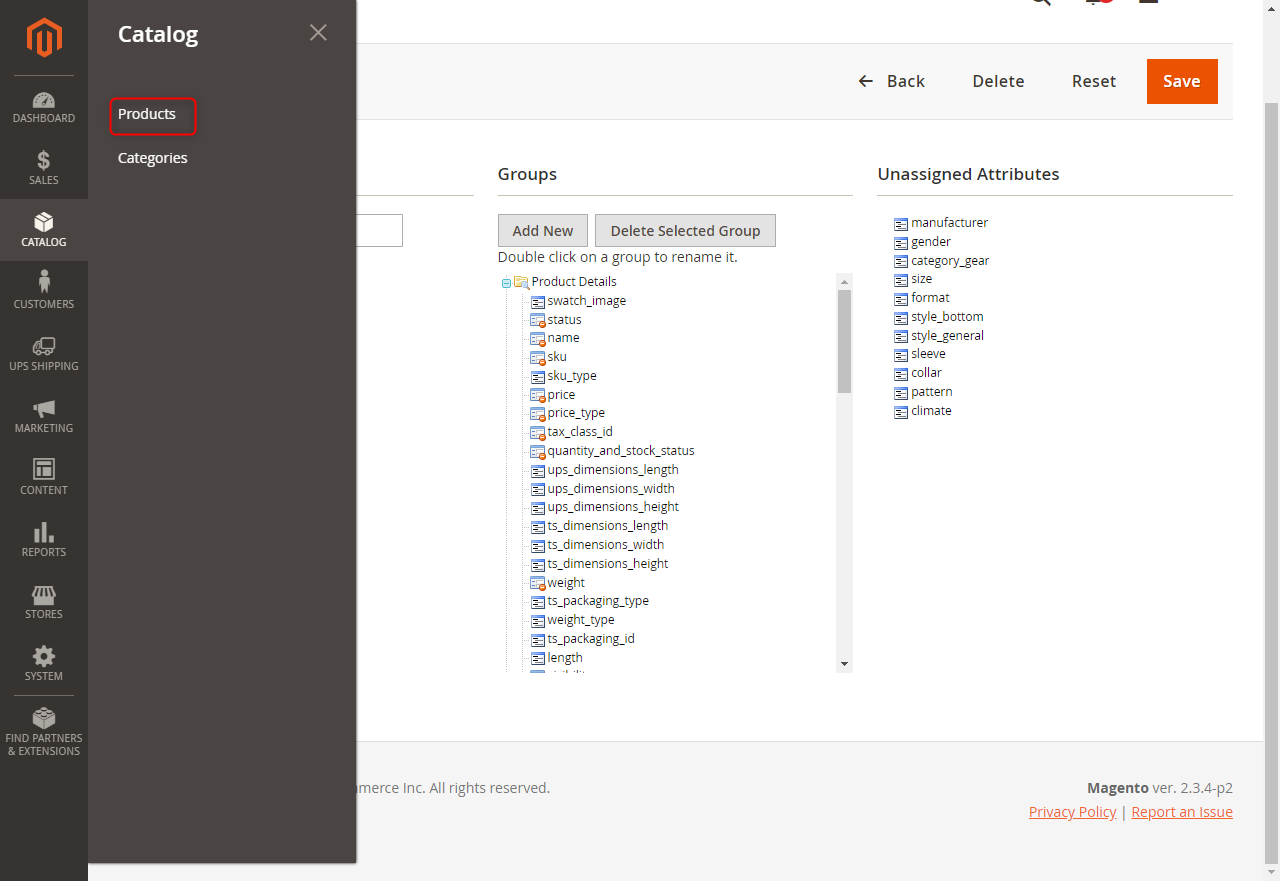
Go to Catalog -> Products
Go to Catalog -> Products
Go to Catalog -> Products
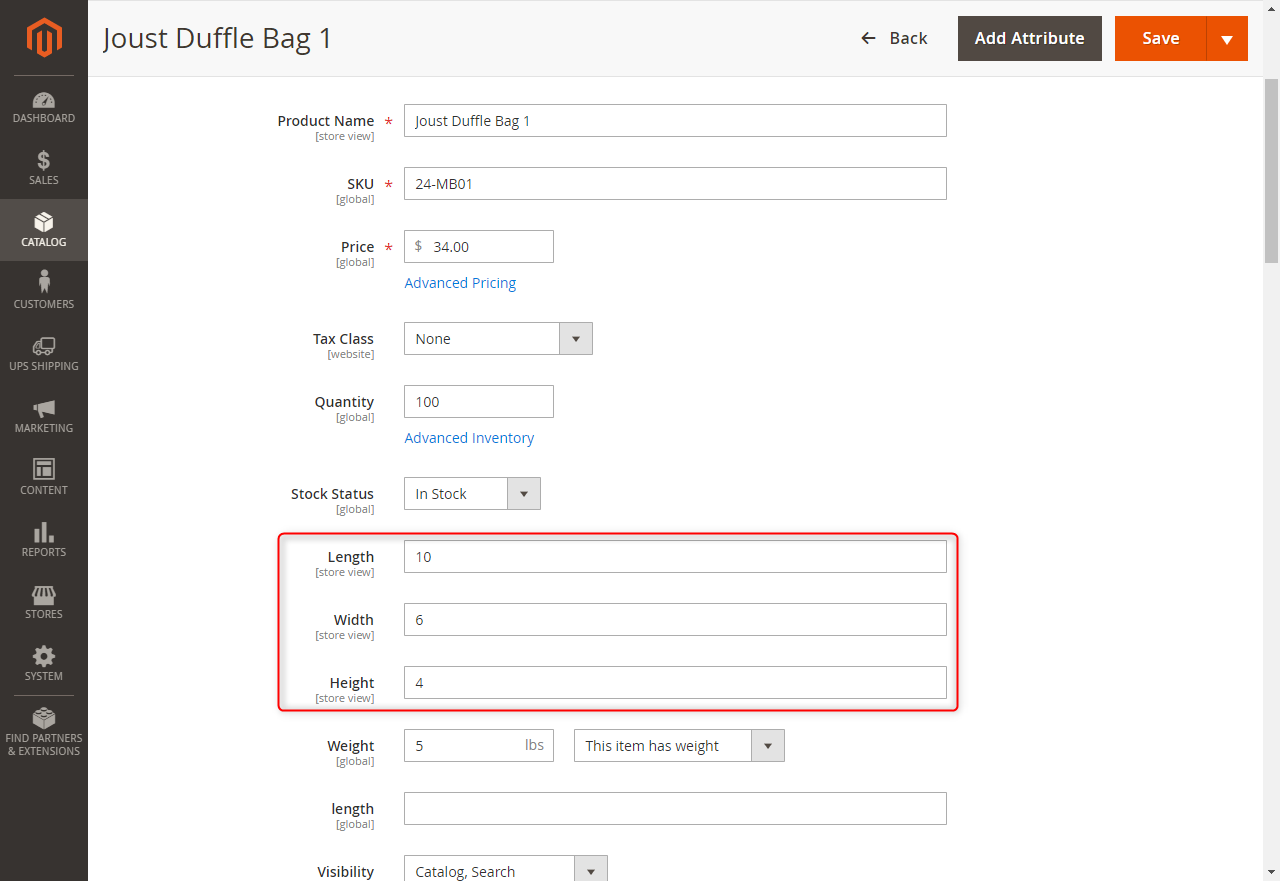
Choose 1 product and setting length, width, height.
Choose 1 product and setting length, width, height.
Click “Save” button
Click “Save” button
Unit of length, width, and height dependent unit of weight. If unit of weight is lbs, unit of length
Unit of length, width, and height dependent unit of weight. If unit of weight is lbs, unit of length, width, and height will be inch. If unit of weight is kg, unit of length, width, and height will be cm.
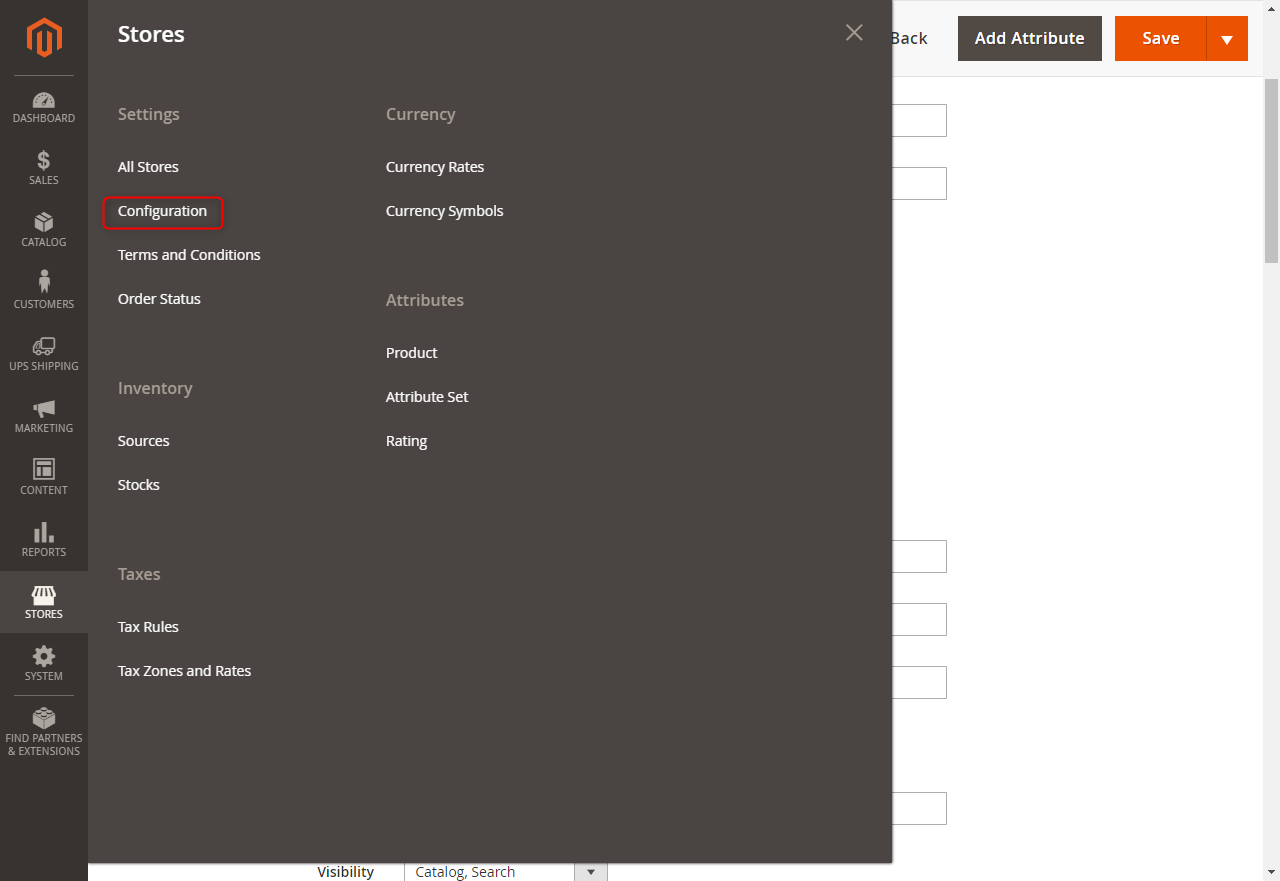
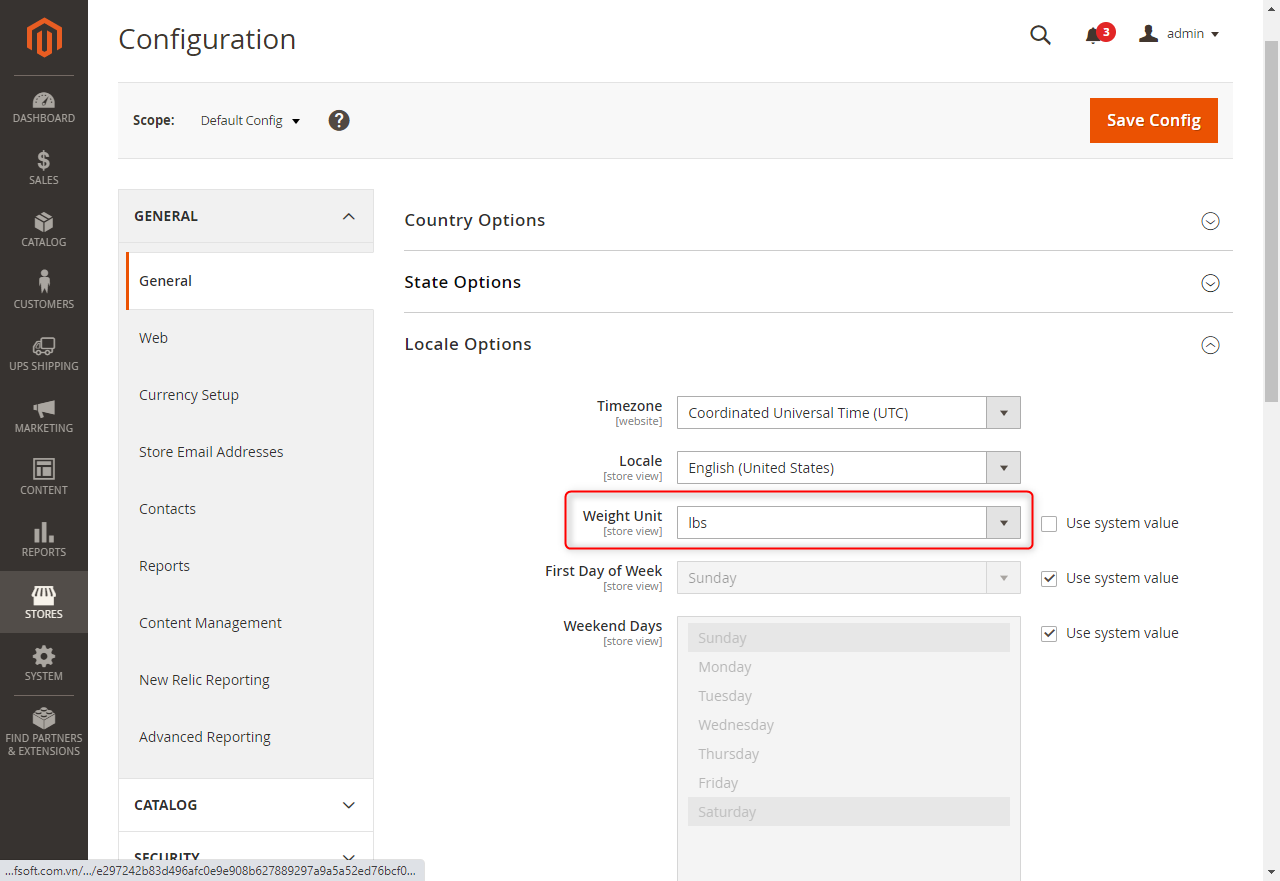
You can go to Stores -> Settings -> Configuration -> General -> General -> Locale Options -> Weight
You can go to Stores -> Settings -> Configuration -> General -> General -> Locale Options -> Weight Unit for setting unit of weight.