2. Installation de l'expédition UPS et du point d'accès UPS™ : Extension officielle
Guide d'installation étape par étape. Installation de l'expédition UPS et du point d'accès UPS™ : Extension officielle. Couvre le téléchargement, la configuration et la configuration initiale.
Guide étape par étape
1. Téléchargez le fichier zip de l'extension UPS
Go to OpenCart site -> Extensions -> Installer
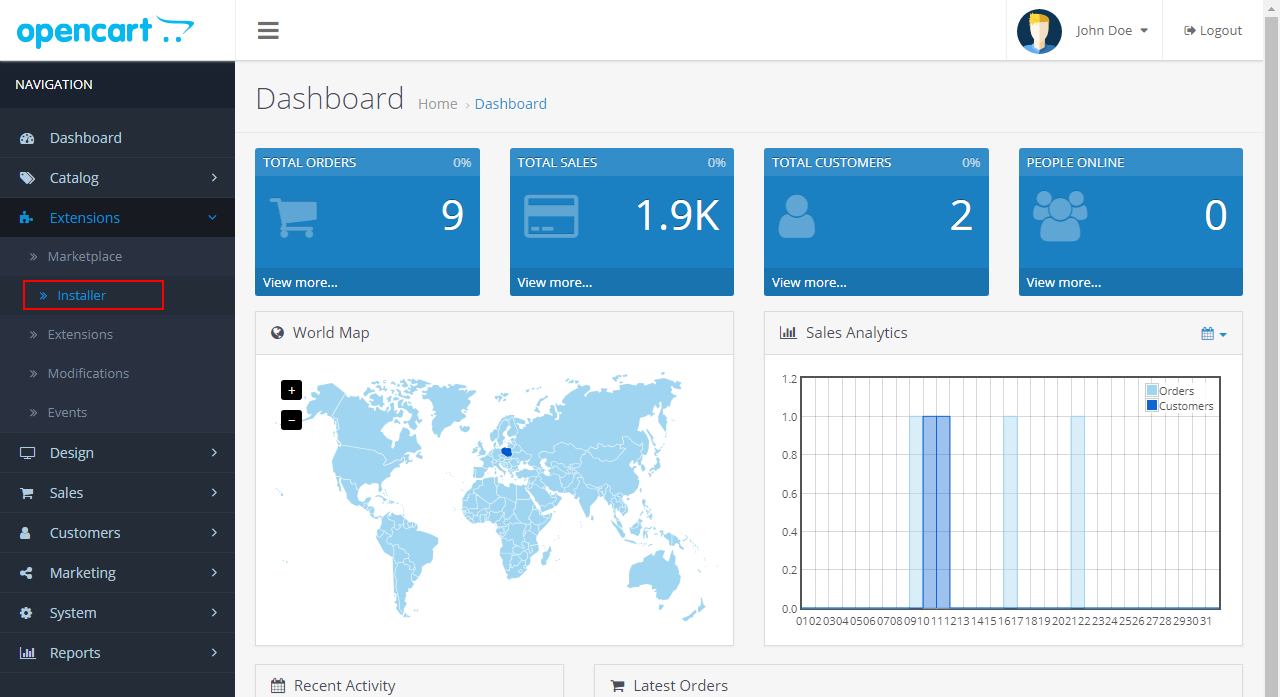
Go to OpenCart site -> Extensions -> Installer
Go to OpenCart site -> Extensions -> Installer

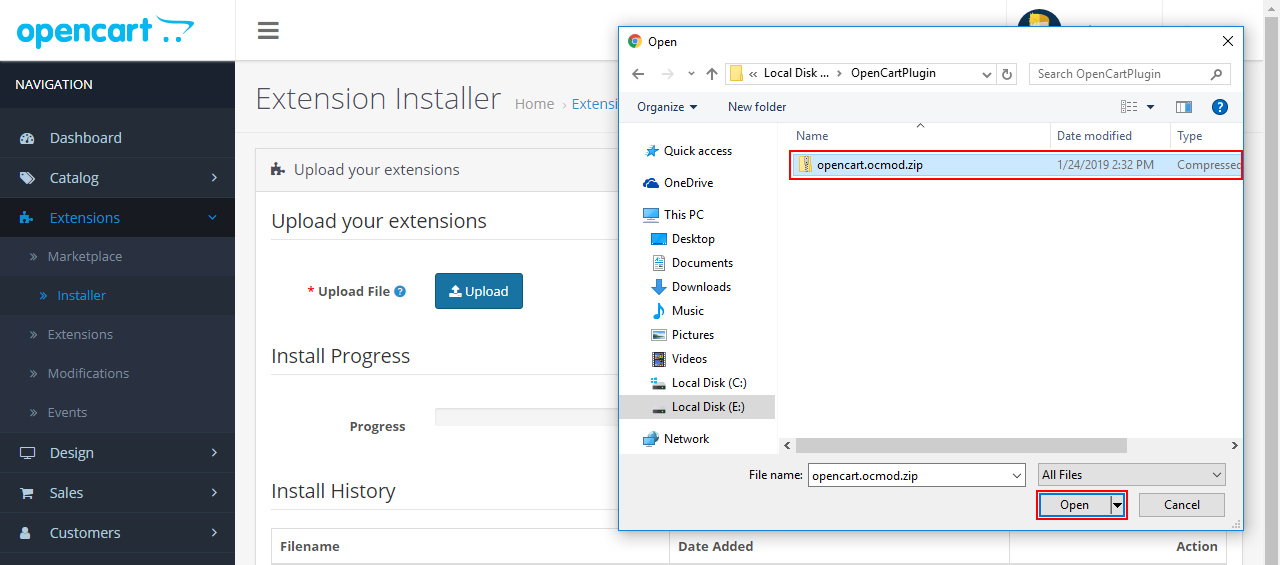
Click on the “Upload” button
Click on the “Upload” button

Select opencart.ocmod.zip file
Select opencart.ocmod.zip file

OpenCart system will automatically install the module.
OpenCart system will automatically install the module.

2. Activez le module d'expédition UPS dans le Back office.
Go to: Extensions -> Extensions -> Choose the extension type -> Modules

Go to: Extensions -> Extensions -> Choose the extension type -> Modules
Go to: Extensions -> Extensions -> Choose the extension type -> Modules

Click on the install icon (+) to enable “UPS Shipping and UPS Access Point™ : Official Extension”
Click on the install icon (+) to enable “UPS Shipping and UPS Access Point™ : Official Extension”

“UPS Shipping and UPS Access Point™ : Official Extension” is enabled in Back office
“UPS Shipping and UPS Access Point™ : Official Extension” is enabled in Back office

3. Activez « Expédition UPS et point d'accès UPS™ : Extension officielle » dans le Front office
Go to: Extensions -> Extensions -> Choose the extension type -> Shipping

Go to: Extensions -> Extensions -> Choose the extension type -> Shipping
Go to: Extensions -> Extensions -> Choose the extension type -> Shipping

Click on the install icon (+) to install “UPS Shipping and UPS Access Point™ : Official Extension” f
Click on the install icon (+) to install “UPS Shipping and UPS Access Point™ : Official Extension” for Front office:

Click on the icon Edit to enable “UPS Shipping and UPS Access Point™ : Official Extension” for Front
Click on the icon Edit to enable “UPS Shipping and UPS Access Point™ : Official Extension” for Front office:

Choose the option “Enabled” and click “Save”:
Choose the option “Enabled” and click “Save”:

4. Videz le cache après avoir installé l'expédition UPS et le point d'accès UPS™ : Extension officielle
Click to menu Extensions -> Extensions -> Modifications to go Modifications screen

Click to menu Extensions -> Extensions -> Modifications to go Modifications screen
Click to menu Extensions -> Extensions -> Modifications to go Modifications screen

Click to the “Clear” button to clear cache.
Click to the “Clear” button to clear cache.

Click to the “Refresh” button to rebuild your modification cache
Click to the “Refresh” button to rebuild your modification cache