







1. Guía de Incorporación de Shopify
Guía completa de incorporación para el envío de UPS en Shopify. Cubre la configuración de la cuenta, la conexión de la tienda y la configuración del primer envío.
Guía paso a paso
Incorporación Completa del Envío de UPS en Shopify
This guide provides a step-by-step process for setting up UPS shipping with your Shopify store. It is designed for Shopify store owners who want to integrate UPS shipping services seamlessly.
Registrar o Iniciar Sesión en el Panel de Control de UPS
Begin by registering a new account or logging into your existing UPS Dashboard account.
Visit https://ups.dashboardlink.com/register to create a new account. If you already have an account, log in at https://ups.dashboardlink.com/login.
→ https://ups.dashboardlink.com/register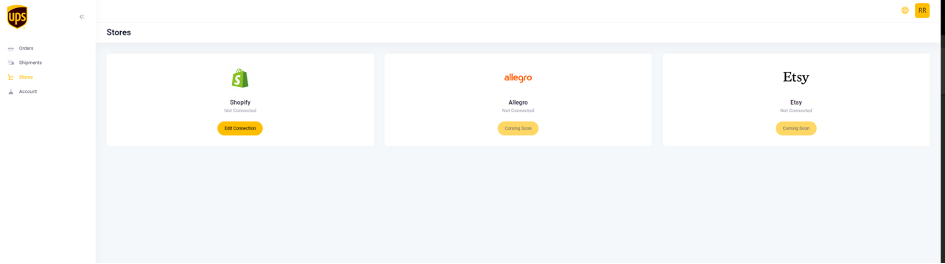
Conectar la Tienda Shopify
Link your Shopify store to the UPS Dashboard using Shopify's Custom App approach.
After logging into your dashboard, navigate to https://ups.dashboardlink.com/de/stores and click on the 'Edit Connection' button for Shopify. Follow the instructions to create a Custom App on Shopify.
→ https://www.youtube.com/watch?v=GxALZdLJugg&list=PL1Di4jfnWLgssa5mdaoyYzoaInJgTbLaL&index=12
Establecer Valores Predeterminados
Configure default settings such as Shipper Information and Measurement system.
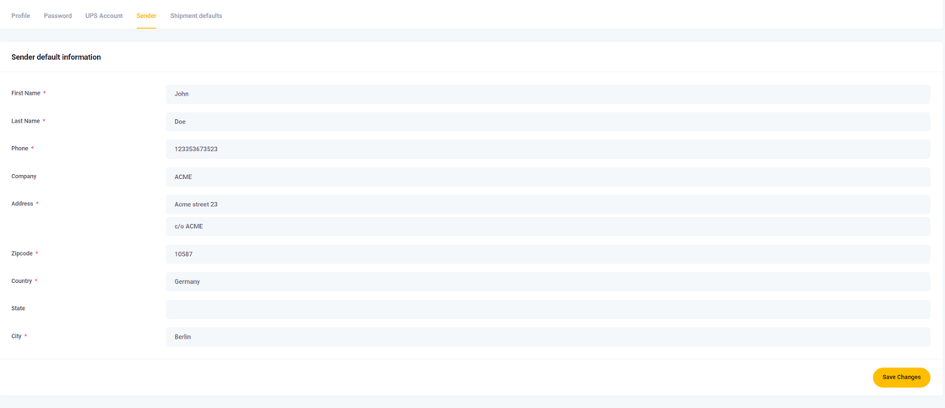
Navigate to https://ups.dashboardlink.com/user/profile# and open the 'Sender' tab to add your Sender details. Then, set up default package measurements under the 'Shipment defaults' tab. These defaults apply if the commerce system doesn't provide dimensions, but you can modify them before printing a label.
→ https://www.youtube.com/watch?v=YqMVbdU-j10&list=PL1Di4jfnWLgssa5mdaoyYzoaInJgTbLaL&index=14
Vincular Cuenta de UPS
Connect your UPS account to the dashboard to enable shipping services.
Open the 'UPS Account' tab on the dashboard and enter the required information to link your UPS account. This step is crucial for processing shipments through UPS.
→ https://www.youtube.com/watch?v=i8n3ibCv0fo&list=PL1Di4jfnWLgssa5mdaoyYzoaInJgTbLaL&index=15
Crear Tarifas de Envío de UPS en Shopify
Set up shipping rates in Shopify that are specific to UPS services.
Create shipping rates in Shopify with names starting with 'UPS' to filter UPS-specific orders in the dashboard. For detailed instructions, refer to the Shopify Help Center: https://help.shopify.com/en/manual/shipping/setting-up-and-managing-your-shipping/setting-up-shipping-rates.
→ https://help.shopify.com/en/manual/shipping/setting-up-and-managing-your-shipping/setting-up-shipping-rates
Crear un Envío
Manage open orders and create shipping labels for them.
Visit https://ups.dashboardlink.com/orders to view open orders. Use the 'Action' button to view order details or create a shipping label.

Ver Detalles del Pedido
Access detailed information about each order.
The order details page provides an overview and allows you to create a label or update tracking information.

Crear una Etiqueta de Envío
Finalize shipment details and generate a shipping label.
Select 'Create Shipment' to review and complete order information. Ensure sender and receiver details are correct, and configure UPS service and packaging. Click 'Create Shipping' to generate the label and move the order to the 'Shipments' section.
→ https://www.youtube.com/watch?v=Cf70Oe9D51I&list=PL1Di4jfnWLgssa5mdaoyYzoaInJgTbLaL&index=4
Soporte y Solución de Problemas
Get help and resolve issues with the UPS Dashboard.
For support, email upsplugins@ecommerce.help. If you encounter login issues, use the 'Forgot password?' link to reset your password. If problems persist, contact support.
Reset Password
Instructions for resetting your password if you can't log in.
If your credentials don't match, select 'Forgot password?', enter your email, and follow the link sent to reset your password. Contact support if this doesn't resolve the issue.
